
In our fast-paced digital world, every second counts. Whether you’re drafting emails, browsing the web, or juggling multiple apps, reaching for the mouse can slow you down. Keyboard shortcuts are simple key combinations that let you perform common actions instantly—often cutting tasks in half.
In this guide, you’ll learn the essentials that work across Windows, Mac, and even browsers. We’ll cover why they matter, the must-know shortcuts with real-life examples, platform differences, practical tips, and answers to common questions. Once you start using these, you’ll wonder how you ever managed without them.
What Are Keyboard Shortcuts?
Keyboard shortcuts are combinations of two or more keys that trigger commands without menus or clicks. For example, pressing Ctrl + C (Windows) or Cmd + C (Mac) copies selected text instantly.
They’ve been around since the early days of computing and remain just as relevant in 2026. Most programs support them because they’re faster, more precise, and easier on your hands than constant mouse movements.
Why Keyboard Shortcuts Matter: Key Benefits
Using shortcuts isn’t just about speed—it’s a game-changer for daily computer use. Here’s why everyone benefits:
- Save massive time: Basic actions like copy-paste happen in a split second instead of multiple clicks. Over a workday, this adds up to hours saved.
- Reduce physical strain: Less mouse movement means fewer wrist and shoulder aches, especially for remote workers or students.
- Boost focus and flow: Stay in “keyboard mode” and keep your eyes on the screen—no breaking concentration to hunt for menu options.
- Work smarter on any device: These shortcuts apply to laptops, desktops, and even some tablets with keyboards.
Real-life example: You’re writing a report and accidentally delete a whole paragraph. Instead of panicking and retyping, hit Ctrl + Z (or Cmd + Z on Mac) to undo instantly. It’s a lifesaver in emails, documents, or spreadsheets.
Must-Know Universal Shortcuts (Work Everywhere)
These core shortcuts use Ctrl on Windows/Linux and Cmd on Mac. They work in almost every app, browser, and even many mobile apps with external keyboards.
- Copy: Ctrl/Cmd + C – Copies text, images, or files.
- Cut: Ctrl/Cmd + X – Removes and stores the item for moving.
- Paste: Ctrl/Cmd + V – Inserts what you copied or cut.
- Undo: Ctrl/Cmd + Z – Reverses your last action (press multiple times to go back further).
- Redo: Ctrl/Cmd + Y (or Shift + Ctrl/Cmd + Z on Mac) – Brings back what you undid.
- Select All: Ctrl/Cmd + A – Highlights everything on the page or in a document.
- Save: Ctrl/Cmd + S – Quickly saves your work (use this often!).
- Find: Ctrl/Cmd + F – Opens a search box to locate text on a page or document.
- Close window/tab: Ctrl/Cmd + W – Shuts the current tab or window.
- Refresh: Ctrl/Cmd + R (or F5 on Windows) – Reloads the current page.
Pro tip: For browsers, add Ctrl/Cmd + Shift + T to reopen a accidentally closed tab—perfect when you lose an important page.
Windows-Specific Shortcuts for Everyday Tasks
Windows users (still the majority worldwide) have powerful built-in options, especially in Windows 11:
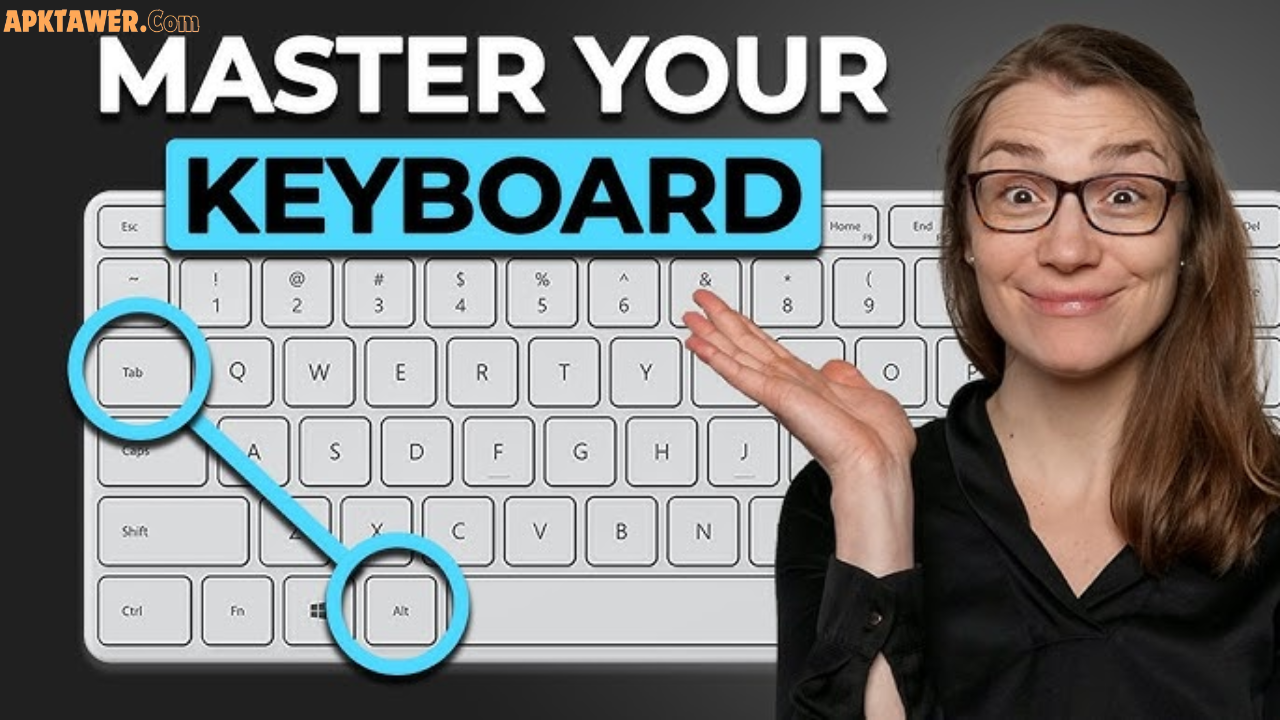
- Switch apps: Alt + Tab – Cycles through open programs (add Shift to go backward).
- Show desktop: Windows key + D – Minimizes everything instantly.
- Lock your PC: Windows key + L – Secures your screen when stepping away.
- Open File Explorer: Windows key + E – Launches file management fast.
- Screenshot tool: Windows key + Shift + S – Snips any part of the screen.
- Snap windows: Windows key + Left/Right Arrow – Neatly arranges apps side-by-side for multitasking.
- Rename file: F2 – Select a file and press this to edit its name.
These shine during busy days—like quickly switching between a spreadsheet and email without losing your place.
Mac-Specific Shortcuts for Everyday Tasks
Mac users rely on the Cmd key instead of Ctrl for most actions. Here are the standouts:
- Switch apps: Cmd + Tab – Similar to Windows Alt + Tab.
- Hide app: Cmd + H – Quickly conceals the current program.
- Minimize window: Cmd + M – Shrinks the active window.
- Quit app: Cmd + Q – Closes the program completely.
- Spotlight search: Cmd + Space – Opens instant search for files, apps, or web results.
- Duplicate file: Cmd + D – Makes a copy of the selected item.
- Screenshot: Cmd + Shift + 4 – Captures a custom area (or Cmd + Shift + 5 for more options).
Mac shortcuts feel seamless once you adapt, especially if you switch between Windows and Mac often.
Windows vs. Mac: Quick Comparison
| Action | Windows | Mac |
|---|---|---|
| Copy | Ctrl + C | Cmd + C |
| Switch between apps | Alt + Tab | Cmd + Tab |
| Show desktop | Windows + D | Cmd + F3 or Mission Control |
| Close active app | Alt + F4 | Cmd + Q |
| Screenshot | Windows + Shift + S | Cmd + Shift + 4 |
| Lock screen | Windows + L | Cmd + Shift + Q (or Control + Cmd + Q) |
This side-by-side view makes it easy to switch devices without frustration.
Pros and Cons of Using Keyboard Shortcuts
Pros:
- Dramatically faster workflow and higher productivity.
- Works offline and in any app—no internet or extra software needed.
- Builds muscle memory that lasts forever.
Cons:
- Initial learning curve (a few days of practice fixes this).
- Some shortcuts vary slightly by app or update (rare for basics).
- Not every action has one, so you’ll still use the mouse occasionally.
Overall, the pros far outweigh the cons—especially once you master the top 10.
Practical Tips and Best Practices
- Start small: Learn 3–5 new shortcuts per week. Practice in a simple text editor.
- Use mnemonics: “C” for Copy, “Z” for Zap (undo)—it sticks faster.
- Print a cheat sheet: Keep one by your desk or as your phone wallpaper.
- Customize when possible: Many apps (like browsers or Microsoft Office) let you remap keys.
- Combine with habits: Before reaching for the mouse, pause and try the shortcut first.
- Practice in real scenarios: Copy-paste in Gmail, switch tabs while researching, or snap windows during video calls.
Real-life insight: Professionals who use shortcuts daily report feeling more in control and less stressed during deadlines.
FAQs
What are the top 5 keyboard shortcuts everyone should know? The absolute must-haves are Copy (Ctrl/Cmd + C), Paste (Ctrl/Cmd + V), Undo (Ctrl/Cmd + Z), Switch apps (Alt/Cmd + Tab), and Save (Ctrl/Cmd + S). These cover 80% of daily needs.
Do keyboard shortcuts work the same on Windows and Mac? Most basics do, but replace Ctrl with Cmd on Mac. The comparison table above shows the key differences.
Can I use these shortcuts on a laptop or Chromebook? Yes! They work on any keyboard. Chromebooks use Ctrl or Search key equivalents for many actions.
Are there shortcuts for mobile devices? Some external keyboards support them. On phones, gestures replace most shortcuts, but iPad with Magic Keyboard uses many Mac-style ones.
How can I remember so many shortcuts? Focus on categories (copy/paste group, navigation group) and practice daily. Muscle memory develops quickly with consistent use.
Conclusion
Keyboard shortcuts are one of the simplest ways to work smarter, not harder. By mastering these universal, Windows, and Mac essentials, you’ll navigate your computer with speed and confidence—saving time every single day.
Start with the universal ones today, then expand to your OS-specific favorites. The more you use them, the more natural they become. Explore your favorite apps’ menus (many show shortcuts right there) and keep building your skills.
Your fingers will thank you—and so will your productivity!
Ready to level up? Open your favorite app and try three shortcuts right now.