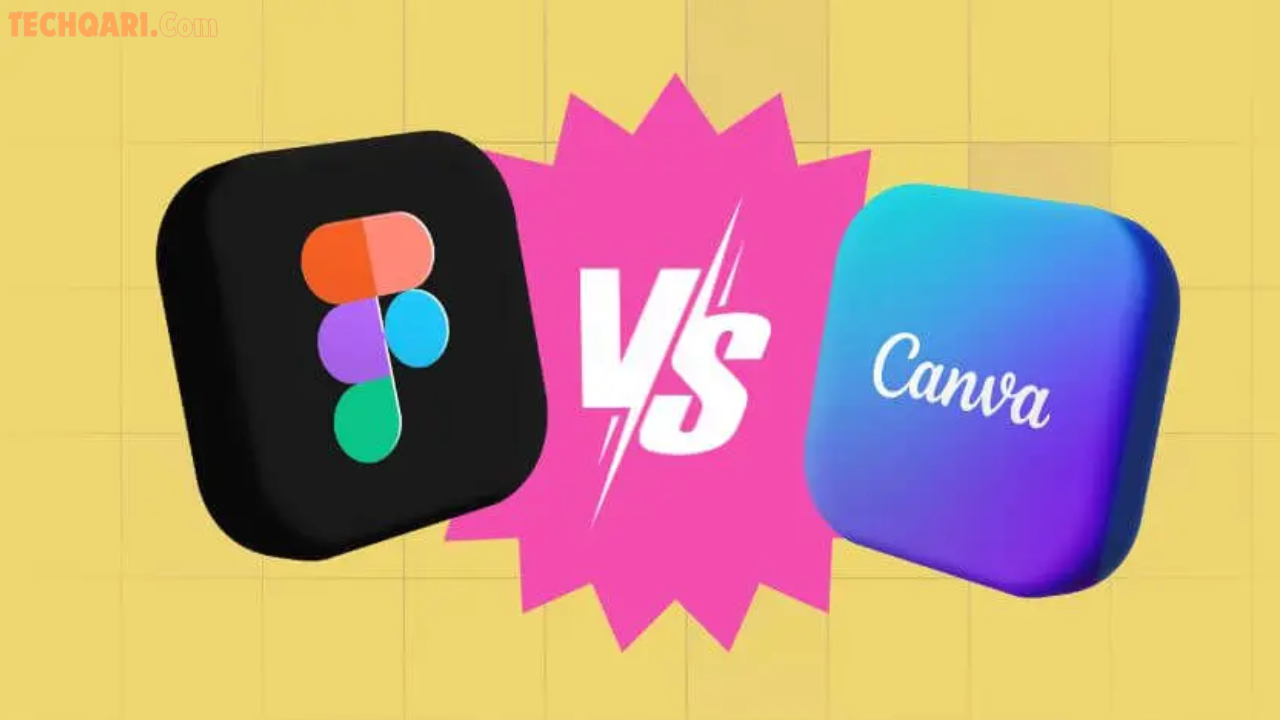

If you’re not a professional designer but still need to create eye-catching social media posts, presentations, logos, or even simple website mockups, you’ve probably wondered: Canva or Figma?
Both tools are popular, cloud-based, and beginner-friendly in their own ways. But they serve slightly different needs. In this guide, you’ll discover exactly which one fits your workflow, how they compare head-to-head, and practical tips to start creating beautiful designs today — even if you’ve never opened a design tool before.
What Are Canva and Figma?
Canva is an all-in-one graphic design platform built for speed and simplicity. It uses a drag-and-drop editor with thousands of ready-made templates, stock photos, illustrations, and fonts. It’s perfect for quick everyday designs like Instagram posts, flyers, ebooks, or team presentations.
Figma is a powerful collaborative design tool originally created for UI/UX and interface work. It offers advanced vector editing, components, and real-time teamwork. While it has grown more accessible, it still feels more like a professional workspace than a quick-design app.
In short: Canva feels like a creative toolbox full of shortcuts. Figma feels like a blank canvas with professional-grade tools.
Key Features Side-by-Side
Here’s how the two tools compare in the areas that matter most to non-designers:
- Ease of Use Canva wins hands down with its intuitive drag-and-drop interface. You can create a polished post in minutes. Figma has a steeper learning curve but rewards you with more creative freedom once you get comfortable.
- Templates & Starting Points Canva offers millions of beautiful, ready-to-use templates tailored for marketing, social media, and business. Figma has fewer templates but excels at reusable components and design systems.
- Collaboration Both support real-time teamwork. Figma’s collaboration feels more seamless for larger teams (comments, version history, and developer handoff). Canva makes sharing and editing simple even for people without accounts.
- Mobile Experience Canva’s mobile app is excellent for on-the-go edits. Figma’s mobile support is more limited.
- AI Features Canva shines with built-in Magic Studio tools for generating images, removing backgrounds, and smart suggestions. Figma offers solid AI plugins but relies more on third-party options.
- Export & Publishing Canva lets you publish directly to social media or create live websites. Figma focuses on exporting clean files for developers or print.
Canva vs Figma: Pros and Cons for Non-Designers
Canva Pros
- Extremely beginner-friendly
- Huge library of templates and assets
- Fast for marketing and social content
- Affordable and generous free plan
- Strong AI tools for quick results
Canva Cons
- Less flexible for highly custom or complex designs
- Designs can sometimes look “template-y” if you don’t customize enough
Figma Pros
- Unlimited creative control and precision
- Excellent real-time team collaboration
- Great for building consistent brand systems
- Free plan is powerful for personal use
Figma Cons
- Takes longer to learn
- Fewer ready-made templates
- Can feel overwhelming for simple one-off designs
Quick Verdict for Non-Designers: Choose Canva if you want beautiful results fast with zero frustration. Choose Figma if you’re willing to invest a little time to learn a more powerful tool and want unique, scalable designs.
Practical Tips and Best Practices
- Start Simple: If you’re new, begin with Canva. Create 5–10 designs using templates, then try customizing colors and fonts to match your brand.
- Mix Both Tools: Many non-designers use Canva for quick graphics and Figma for brand assets or prototypes. You can even import Canva designs into Figma if needed.
- Build a Brand Kit Early: Both tools let you save colors, fonts, and logos. Set this up once and save hours later.
- Use Real-Life Examples: Need a LinkedIn banner? Search “LinkedIn banner” in Canva and tweak it. Want a mobile app mockup? Start with Figma’s device frames.
- Collaborate Smartly: Share a Canva link with your team for quick feedback. Use Figma when multiple people need to edit the same file simultaneously.
- Keep It Consistent: Stick to one tool for a project to avoid version confusion.
FAQs
Is Canva easier than Figma for beginners? Yes. Canva’s drag-and-drop style and huge template library make it much more approachable for non-designers. Figma requires more time to learn but offers greater long-term flexibility.
Can non-designers use Figma effectively? Absolutely. Many small business owners, marketers, and freelancers use Figma successfully. Start with Figma’s community files and tutorials — the learning curve is worth it if you create designs regularly.
Which tool is cheaper? Both have strong free plans. Canva’s paid plans usually work out more affordable for individuals and small teams. Figma’s pricing scales better for larger design-focused teams.
Can I create a full website with either tool? Canva offers simple one-page websites you can publish directly. Figma is better for designing complex websites that developers will later build.
Do I need to pay to get good results? No. You can create professional-looking designs on the free plans of both tools. Upgrade only when you need more storage, advanced AI features, or team collaboration.
Conclusion
For most non-designers, Canva remains the smarter, faster choice in 2026. It delivers beautiful results quickly without a steep learning curve.
However, if you enjoy the creative process, work with teams often, or want more professional control, Figma is worth learning.
The best way to decide? Open both tools (they’re free to try) and create the same simple design in each. You’ll quickly feel which one clicks for you.
Ready to create stunning visuals? Explore Canva’s templates or try Figma’s free plan today and start designing smarter.