
Ever handed your phone to someone and immediately felt that little knot in your stomach? That “oh no, what if they swipe too far” moment? Yeah, we’ve all been there.
The good news? You don’t need to download a sketchy vault app or some third-party locker that secretly harvests your data. Your Android phone already has powerful built-in tools to hide apps, photos, and personal files — and most people have no idea they exist.
In this guide, I’ll walk you through every method that works in 2026, step by step — no root, no extra apps, no complicated tech stuff.
What Does “Hiding” on Android Actually Mean?
Before we dive in, let’s be clear about what hiding actually does on Android.
Hiding an app, photo, or file doesn’t delete it. It simply removes it from the places where people normally look — your home screen, app drawer, photo gallery, or file browser. The content still exists on your phone, it’s just tucked away where casual snoopers can’t stumble upon it.
There are two levels of hiding:
- Casual hiding — removes something from plain view (useful for nosy family members)
- Secure hiding — locks content behind a PIN or biometric (useful if you want real privacy)
We’ll cover both. Let’s get into it.
Method 1: Use Android 15’s Private Space (The Best Built-In Option in 2026)
If your phone is running Android 15 or higher, congratulations — you have the most powerful privacy feature Android has ever shipped: Private Space.
Think of it as a second, hidden version of your phone that lives inside your main phone. Apps installed in Private Space don’t appear on your home screen, don’t show up in recent apps, and aren’t visible in Settings unless you unlock it. Even notifications are hidden.
How to Set Up Private Space on Android 15:
- Open Settings on your Android phone
- Go to Security & Privacy
- Tap Private Space
- Tap Set Up and sign in with a Google Account (use a separate account for better privacy)
- Authenticate with your fingerprint or PIN
- Your Private Space is now ready
Once set up, you’ll see a “Private” section at the bottom of your app drawer. Tap it to unlock and access everything inside.
Want to Hide Private Space Completely?
Go to Settings → Security & Privacy → Private Space → Hide Private Space → On
Now, Private Space won’t even appear in your app drawer. To access it, you’ll have to search for “private space” in the app drawer — which only you will know to do.
Pro Tip: Use a completely separate Google Account inside Private Space. This prevents activity leaks between your main and private profiles — like search suggestions or recommendations appearing in the wrong place.
What can you store in Private Space?
- Apps (installed separately from the Play Store inside Private Space)
- Photos and videos
- Documents and personal files
- Anything you want completely siloed from your main profile
Method 2: Samsung Secure Folder (For Samsung Users)
If you’re rocking a Samsung Galaxy phone, you have access to Secure Folder — Samsung’s version of Private Space that’s been around for years and is incredibly polished.
Secure Folder creates an encrypted, password-protected space on your device. Apps inside it are completely separate from the main phone. You can even install the same app twice — once normally and once inside Secure Folder with a different account.
How to Enable Samsung Secure Folder:
- Open Settings
- Go to Biometrics and Security
- Tap Secure Folder
- Sign in with your Samsung Account
- Choose your lock type (PIN, password, pattern, or biometrics)
- Done — Secure Folder appears as an app on your home screen
Moving Apps and Files into Secure Folder:
- Open Secure Folder
- Tap Add Apps to move existing apps
- Tap Add Files to move photos, videos, or documents
- The originals are removed from your main space
Hide Secure Folder from the Home Screen:
Go to Secure Folder → Settings → Hide Secure Folder — toggle it on. To access it again, go to Settings → Biometrics and Security → Secure Folder.
Method 3: Google Photos Locked Folder (Hide Photos Without Any App)
Already have Google Photos? Then you already have a built-in private photo vault — you just haven’t activated it yet.
The Locked Folder in Google Photos works by removing selected photos and videos from the main gallery, the share menu, and any other app that tries to access your media. They simply become invisible to everything except Google Photos itself.
How to Set Up Google Photos Locked Folder:
- Open Google Photos
- Tap Library at the bottom
- Tap Utilities
- Scroll down and tap Set up Locked Folder
- Authenticate with your fingerprint or PIN
Moving Photos to the Locked Folder:
- Open any photo you want to hide
- Tap the three-dot menu (top right)
- Select Move to Locked Folder
- Confirm — the photo disappears from your gallery
Important Things to Know:
- Photos in the Locked Folder are not backed up to Google cloud by default
- If you uninstall Google Photos, those photos may be lost — so back them up first
- Works on Android 6 and above
- Available on Pixel phones natively; available on other Android phones through the Google Photos app
Method 4: Hide Photos Using Google Files Safe Folder
Google’s Files app (pre-installed on most Android phones) has a built-in Safe Folder — completely separate from Google Photos’ Locked Folder.
The Safe Folder in Google Files is perfect for hiding documents, PDFs, screenshots, voice recordings, and any kind of file — not just photos.
How to Use Google Files Safe Folder:
- Open the Files app (by Google)
- Tap Browse at the bottom
- Scroll down to find Safe folder
- Create a separate PIN (different from your screen lock)
- Inside the Safe Folder, tap the + button to add files
Files stored here don’t appear in search results, can’t be shared from within other apps, and aren’t visible to any third-party apps.
Method 5: Create a Hidden Folder Using the Dot Trick (Works on All Android Phones)
This is an old trick that still works perfectly in 2026. On Android (and Linux systems), any folder or file whose name starts with a dot (.) is treated as a hidden file.
So a folder named .myphotos will be invisible in your gallery and most file browsers by default.
How to Create a Hidden Folder:
- Open your phone’s File Manager (pre-installed on most Android phones)
- Navigate to Internal Storage
- Tap Create New Folder
- Name it starting with a dot — for example:
.privateor.myfiles - Move any photos, videos, or documents into this folder
That’s it. Open your gallery app — nothing shows up. The folder is invisible.
How to Access Your Hidden Folder Later:
- Open File Manager
- Go to Settings (inside the app)
- Enable Show Hidden Files
- Your
.privatefolder will now appear
Important: This method hides files from gallery apps but does NOT encrypt them. If someone enables “Show Hidden Files” in the file manager, they’ll see your folder. Use this for casual privacy, not high-security hiding.
Method 6: Use a .nomedia File to Stop Photos from Appearing in Gallery
This is a slightly more technical trick, but it’s extremely effective. By placing a file named .nomedia inside any folder, you instruct Android’s media scanner to completely ignore that folder — meaning no thumbnails are generated and nothing from that folder ever appears in any gallery app (Google Photos, Samsung Gallery, or any third-party viewer).
How to Create a .nomedia File:
Option A — Using a File Manager:
- Open your File Manager
- Navigate to the folder you want to hide from galleries
- Tap Create New File
- Name it exactly:
.nomedia(no extension after it)
Option B — Using a Text Editor App:
- Open any text/code editor app
- Create a new empty file
- Save it as
.nomedia - Move it to the target folder using File Manager
Once the .nomedia file is inside a folder, your gallery apps will stop showing any photos or videos from that folder permanently — until you delete the .nomedia file.
This works beautifully even if you’re on an older Android version.
Method 7: Disable or Hide Apps from the App Drawer (Built-in Android Feature)
Don’t want certain apps showing up in your app drawer at all? Most Android phones have a built-in option to hide apps without deleting them.
On Stock Android / Pixel Phones:
- Long-press on the home screen
- Tap Home settings
- Look for Hide apps option
On Samsung Galaxy Phones:
- Swipe up to open the app drawer
- Tap the three-dot menu (top right)
- Tap Settings
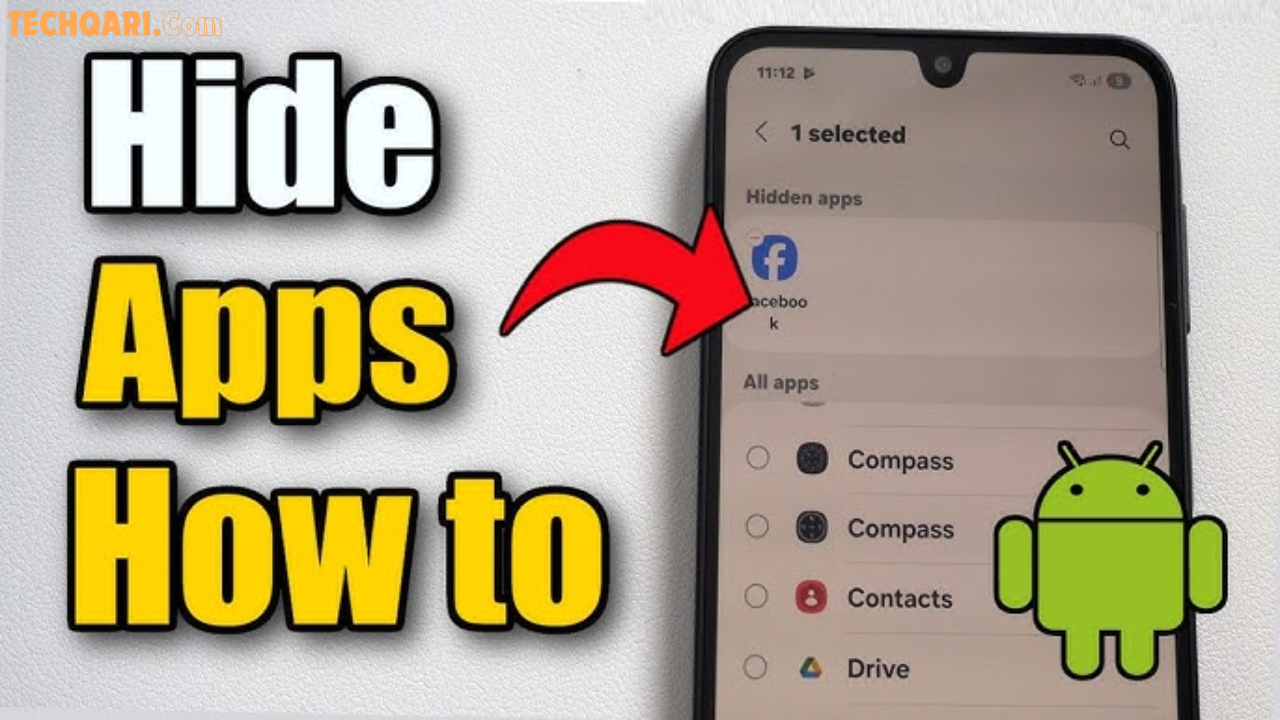
- Tap Hide apps
- Select the apps you want hidden
- Tap Apply
On OnePlus / OxygenOS Phones:
- Swipe up to open the app drawer
- Tap the three-dot menu
- Select Hide apps
- Choose the apps to hide
The apps won’t appear in your home screen or app drawer, but they’re still installed and running. To access a hidden app, go back to the same Hide Apps menu, or search for it using the search bar in the app drawer.
Quick Comparison: Which Method Should You Use?
| Method | Best For | Security Level | Android Version Needed |
|---|---|---|---|
| Private Space | Apps, files, photos | ⭐⭐⭐⭐⭐ | Android 15+ |
| Samsung Secure Folder | Apps, files, photos | ⭐⭐⭐⭐⭐ | Samsung phones |
| Google Photos Locked Folder | Photos & videos only | ⭐⭐⭐⭐ | Android 6+ |
| Google Files Safe Folder | Documents & files | ⭐⭐⭐⭐ | Any Android |
| Dot Folder Trick | Photos, videos, files | ⭐⭐ | Any Android |
| .nomedia File | Photos & videos | ⭐⭐ | Any Android |
| Hide from App Drawer | Apps only | ⭐⭐⭐ | Any Android |
Pros and Cons of Hiding Without Extra Apps
✅ Pros
- No third-party app needed — saves storage space
- No data harvesting risks — some vault apps collect your private data
- No intrusive ads — many free locker apps are ad-heavy
- Native integration — built-in tools work more seamlessly
- No extra permissions — third-party apps often ask for excessive access
❌ Cons
- Some features are device-specific — Private Space needs Android 15, Secure Folder needs Samsung
- Dot folder trick is not encrypted — casual hiding only
- Google Photos Locked Folder not backed up — risk of data loss if app is uninstalled
- No decoy password features — third-party apps offer fake vaults; built-in tools don’t
Frequently Asked Questions (FAQs)
Q1: Can I hide apps on Android without rooting my phone?
Absolutely yes. All methods in this guide work without rooting. Root access is not needed for any built-in Android privacy features like Private Space, Secure Folder, or the dot folder trick.
Q2: Will hiding photos from the gallery delete them?
No. Hiding photos only removes them from view. The actual files remain on your phone. Methods like Google Photos Locked Folder or Samsung Secure Folder simply move the files to a protected location — they are not deleted.
Q3: What is the safest way to hide personal files on Android in 2026?
The safest method is Android 15’s Private Space (for stock Android) or Samsung Secure Folder (for Samsung phones). Both use encryption and require biometric authentication. They completely silo your content from the main profile.
Q4: Does the .nomedia trick work on all Android versions?
Yes. The .nomedia file method is based on how Android’s media scanner works at a system level. It works on all Android versions — from very old devices to the latest Android 15.
Q5: I’m on Android 14 — can I still hide apps without an extra app?
Yes! While Private Space requires Android 15, you can still hide apps from the app drawer using your launcher’s built-in hide feature, use Google Photos Locked Folder (works on Android 6+), use Google Files Safe Folder, or use the dot folder / .nomedia tricks. Plenty of options are available on Android 14.
Final Thoughts
There’s a common myth that you need a third-party app to protect your privacy on Android. The truth is, Android — especially in 2026 — is packed with native privacy tools that are often better, safer, and more reliable than any app you’d download from the Play Store.
From the powerful Private Space feature in Android 15, to the simple but effective dot folder trick that works on every Android device ever made, you have more control over your personal data than you might think.
Start with the method that matches your Android version and security needs. If you’re on Android 15 or Samsung, go straight for Private Space or Secure Folder — they’re genuinely excellent. If you’re on an older device, the Google Photos Locked Folder combined with a hidden dot folder covers 90% of privacy needs.
Your privacy is yours to protect — and now you have the tools to do exactly that. 🔒
Found this guide helpful? Bookmark it and share it with a friend who’s been paranoid about their phone privacy. They’ll thank you.