
You’re using WhatsApp every single day — texting family, sharing photos, sending voice notes to friends. But here’s the scary truth: most people have never touched their WhatsApp privacy settings. And that one simple mistake could leave your account wide open to hackers, stalkers, or even just nosy people in your life.
This guide is your complete, step-by-step WhatsApp security guide for 2026. Whether you’re on Android or iPhone, we’ve got you covered — no tech skills needed.
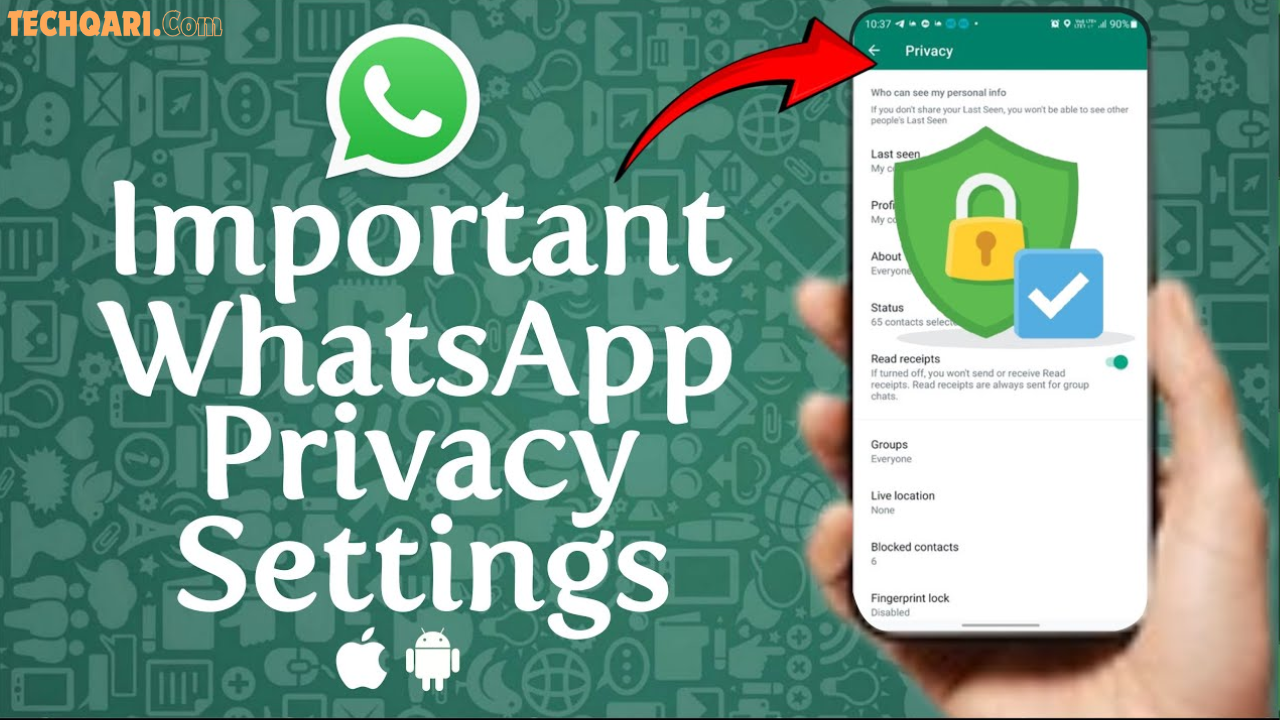
What Are WhatsApp Privacy Settings?
WhatsApp privacy settings are built-in controls that let you decide who can see your information, who can contact you, and how your data is stored or shared. Think of it as a lock on your digital front door.
By default, WhatsApp is set up for convenience, not privacy. That means your last seen status is visible to everyone, anyone can add you to a random group, and your chat backups may be stored unencrypted on Google Drive or iCloud.
These default settings made sense in 2010. In 2026? They’re a serious risk.
WhatsApp has over 3 billion monthly active users worldwide. That makes it one of the biggest targets for cybercriminals, scammers, and data thieves. The good news is that WhatsApp has built some excellent privacy tools — you just need to turn them on.
Why You Need to Change WhatsApp Privacy Settings Right Now
Let’s be real for a second. Most of us download an app, click “Accept” on everything, and never look back. But with a messaging app that holds your personal conversations, photos, contact list, and sometimes financial information — that’s a gamble not worth taking.
Here’s what can go wrong when your privacy settings are ignored:
- A stranger can see your profile photo and “About” section
- Anyone who has your number can see exactly when you were last online
- You could be added to spam groups or scam groups without your permission
- Your chat backups on Google Drive or iCloud could be accessed by anyone who gets into your cloud account
- Your WhatsApp account could get hijacked through SIM swapping if two-step verification is off
None of these are scare tactics. They are real, documented threats. Let’s fix them one by one.
How to Access WhatsApp Privacy Settings
Before we dive in, here’s how to get to your settings on both platforms.
On Android: Open WhatsApp → Tap the three dots (⋮) in the top right → Tap Settings → Tap Privacy
On iPhone: Open WhatsApp → Tap Settings (bottom right) → Tap Privacy
Bookmark this path. You’ll be coming back here a lot.
10 Critical WhatsApp Privacy Settings You Must Change
1. Turn Off “Last Seen” and “Online” Status
This is the setting most people don’t realize is exposing them. When “Last Seen” is on, everyone — including people you barely know — can see exactly when you last opened WhatsApp. It sounds minor, but this can:
- Let stalkers or controlling people monitor your activity
- Create unnecessary social pressure to reply
- Reveal your schedule and location patterns to the wrong people
How to change it: Settings → Privacy → Last Seen & Online → Select Nobody for both options
Pro Tip: When you hide your Last Seen, you also won’t be able to see other people’s Last Seen. That’s a fair trade for your security.
2. Hide Your Profile Photo from Strangers
Your profile picture is often the first thing a scammer or stranger looks at. If it’s set to “Everyone,” anyone who types in your phone number can see your face. That’s not great.
How to change it: Settings → Privacy → Profile Photo → Change to My Contacts or My Contacts Except…
If you want maximum privacy, select Nobody — this hides your photo from all users.
3. Control Who Sees Your “About” and Status
Your “About” section says something like “Hey there! I am using WhatsApp” or maybe something more personal. Your Status updates (photos and videos you post for 24 hours) can also be viewed by a wide audience if not controlled.
How to change it: Settings → Privacy → About → Set to My Contacts Settings → Privacy → Status → Set to My Contacts or customize
You can also choose My contacts except… to exclude specific people — very useful for work contacts you don’t want seeing personal status updates.
4. Enable Two-Step Verification (This One is Non-Negotiable)
This is the single most powerful thing you can do to protect your WhatsApp account. Two-step verification (also called 2FA) adds a six-digit PIN that must be entered whenever your phone number is registered on a new device.
Without this, here’s how account hijacking works: A scammer calls you pretending to be WhatsApp support, tricks you into sharing the SMS verification code, and takes over your account. It happens to thousands of people every day.
With 2FA on, even if they get the SMS code, they still can’t access your account without your PIN.
How to enable it: Settings → Account → Two-Step Verification → Tap Turn On → Create a 6-digit PIN → Add a recovery email
Important: Do not use obvious PINs like 123456 or your birth year. And write it down somewhere safe — if you forget it, account recovery is painful.
5. Encrypt Your Chat Backups
Here’s a fact that shocks most people: WhatsApp messages are end-to-end encrypted while in transit. But when you back them up to Google Drive or iCloud, that encryption does NOT automatically apply to the backup.
This means your old chats sitting in the cloud could potentially be accessed by Google, Apple, law enforcement, or hackers who break into your cloud account.
WhatsApp now lets you add end-to-end encryption to your backups too — but you have to turn it on yourself.
How to enable it: Settings → Chats → Chat Backup → End-to-End Encrypted Backup → Tap Turn On → Use a passkey or create a password
Warning: If you use a password and forget it, WhatsApp cannot recover your backup. Use a password manager or store the key somewhere very safe.
If you want the maximum security option, you can disable backups entirely: Settings → Chats → Chat Backup → Back Up to Google Drive/iCloud → Set to Never
6. Review and Remove Linked Devices
WhatsApp Web and desktop apps are super convenient. But if you’ve ever logged into WhatsApp on a shared computer at school, work, or a friend’s place and forgot to log out — that session could still be active.
Anyone using that computer could be reading your messages right now.
How to check and remove: Settings → Linked Devices → Review all active sessions → Tap on any unfamiliar device → Tap Log Out
Make it a habit to check this list once a week. You should only see devices you actively use.
7. Control Who Can Add You to Groups
Getting added to random WhatsApp groups is annoying at best and a security risk at worst. Spam groups, scam groups, and even groups used for social engineering attacks often start by adding random numbers.
WhatsApp lets you control exactly who can do this.
How to change it: Settings → Privacy → Groups → Select My Contacts or My Contacts Except…
If someone not in your contacts wants to add you to a group, they will need to send you a private invite first — giving you full control.
8. Turn On App Lock (Fingerprint / Face ID)
Imagine you hand your phone to a friend to show them a photo. They swipe to WhatsApp. All your private chats are right there.
WhatsApp’s built-in app lock prevents exactly this. It requires your fingerprint or face recognition every time you (or anyone else) opens WhatsApp — even if your phone is already unlocked.
How to enable it: Settings → Privacy → App Lock → Toggle it on → Choose your timeout setting
Tip: Set the lock to activate “Immediately” for maximum security, or “After 1 minute” if you want slightly more convenience.
9. Disable Read Receipts (Blue Ticks)
The blue double ticks tell the sender that you’ve read their message. This sounds harmless — until you’re in a situation where you need to read a message privately without pressure to reply immediately.
How to disable them: Settings → Privacy → Read Receipts → Toggle Off
Note: When you turn off read receipts, you also won’t see blue ticks in other people’s chats. Group message read receipts cannot be turned off.
10. Manage Your App Permissions
This one lives outside WhatsApp itself, inside your phone’s system settings. WhatsApp often asks for access to your microphone, camera, contacts, location, and storage. Some of these are needed — many are not.
How to review permissions:
Android: Phone Settings → Apps → WhatsApp → Permissions → Review and revoke what you don’t need
iPhone: Phone Settings → Scroll to WhatsApp → Review each permission
At minimum, consider revoking location access unless you actively use WhatsApp’s location-sharing feature. And definitely revoke microphone access when not in use if you’re extra cautious.
WhatsApp Privacy Settings: Quick Comparison Table
| Setting | Default | Recommended |
|---|---|---|
| Last Seen | Everyone | Nobody |
| Online Status | Everyone | Nobody |
| Profile Photo | Everyone | My Contacts |
| About | Everyone | My Contacts |
| Status | My Contacts | My Contacts |
| Two-Step Verification | Off | On |
| Chat Backup Encryption | Off | On |
| Read Receipts | On | Your choice |
| Group Add Permission | Everyone | My Contacts |
| App Lock | Off | On |
New WhatsApp Privacy Features in 2026 You Should Know About
WhatsApp has been on a security spree lately. Here are the newest features worth knowing:
Strict Account Settings
This brand-new feature, rolling out in 2026, is like a “lockdown mode” for your WhatsApp. When enabled, your privacy settings are locked to the most restrictive options automatically. It also blocks attachments and media from people not in your contacts. Designed for journalists, activists, and high-risk users — but available to everyone.
How to enable: Settings → Privacy → Advanced → Strict Account Settings
Chat Lock
You can now lock individual chats inside a separate hidden folder. Even if someone opens your WhatsApp, they won’t see your locked chats without biometric authentication.
How to use it: Long-press any chat → Tap the three dots → Select Lock Chat
Advanced Chat Privacy
This setting prevents people from exporting your chat, auto-downloading your media, or using your messages in AI features. It’s a small but meaningful boundary for sensitive conversations.
How to enable: Open a chat → Tap the contact name → Advanced Chat Privacy → Turn on
WhatsApp Privacy vs. Signal vs. Telegram: A Brief Comparison
A lot of people ask: “Should I just switch to Signal or Telegram?”
Here’s an honest answer:
| Feature | Signal | Telegram | |
|---|---|---|---|
| End-to-End Encryption | Default (messages) | Default (everything) | Optional only |
| Metadata Collection | Collects some | Minimal | Collects more |
| Cloud Backup Encryption | Optional | N/A (local only) | Encrypted (partially) |
| User Base | 3 billion+ | Smaller | 900 million+ |
| Best For | Everyday use | High privacy | Large groups/channels |
The bottom line: WhatsApp is fine for most people when configured properly. Signal is the gold standard for maximum privacy. Telegram is great for communities but is not as private as people assume.
If your main concern is convenience with good security, properly configured WhatsApp works well. If you are a journalist, activist, or handle very sensitive information, consider Signal for your most private conversations.
Pros and Cons of WhatsApp Privacy Settings
Pros
- Easy to set up once you know where to look
- End-to-end encryption is on by default for all messages
- Granular controls — you can customize visibility per contact
- New features like Strict Mode and Chat Lock offer serious protection
- Free and built directly into the app
Cons
- Most security settings are OFF by default — users must manually enable them
- WhatsApp is owned by Meta, which collects some metadata (who you talk to, when, how often)
- Cloud backups are a privacy weak point if encryption is not turned on
- No anonymous account option — your account is tied to a phone number
Tips for Keeping Your WhatsApp Secure Long-Term
Setting your privacy controls once is great. But security isn’t a one-time job. Here are habits that will keep you protected going forward:
- Check Linked Devices weekly — Log out of anything you don’t recognize
- Run the Privacy Checkup quarterly — WhatsApp has a built-in tool: Settings → Privacy → Privacy Checkup
- Never share your SMS verification code — WhatsApp will never ask for it. If someone does, it’s a scam, no exceptions
- Keep WhatsApp updated — Security patches come through app updates. Turn on auto-updates
- Don’t click suspicious links in chats — Even from people you know, as their account may be compromised
- Enable disappearing messages for sensitive conversations — Chats → Open a conversation → Disappearing Messages → Set a timer
Frequently Asked Questions (FAQs)
Q1: Does WhatsApp read my messages?
No. WhatsApp uses end-to-end encryption for all personal messages and calls, which means only you and the person you’re chatting with can read them. Not even WhatsApp or Meta can see the content of your messages. However, WhatsApp does collect metadata — such as who you talk to and how often — which is used for business purposes by Meta.
Q2: Can someone hack my WhatsApp without touching my phone?
Yes, this is possible through SIM swapping — where a hacker convinces your mobile carrier to transfer your number to their SIM card. Once they have your number, they can receive your WhatsApp verification code and take over your account. The best defense is enabling Two-Step Verification, which requires a second PIN that the hacker won’t have.
Q3: Is WhatsApp Web safe to use?
WhatsApp Web itself is secure, but only if you use it on a private, trusted device. The risk comes from forgetting to log out on shared computers. Always check Settings → Linked Devices and remove any sessions you don’t recognize. Never use WhatsApp Web on a public computer.
Q4: What happens to my WhatsApp data if I don’t use it for a long time?
WhatsApp automatically deletes inactive accounts after 120 days of inactivity to protect your data. Undelivered messages are stored on WhatsApp servers for 30 days after which they are deleted. Your chat backups on Google Drive or iCloud remain until you manually delete them.
Q5: Should I use disappearing messages?
Disappearing messages are a great idea for sensitive conversations. When enabled, messages automatically delete after a set time (24 hours, 7 days, or 90 days). It reduces the risk of old messages being read if someone gets access to your phone or account later. You can enable them for all new chats by default: Settings → Privacy → Default Message Timer.
Conclusion
Your WhatsApp account holds a lot more than just text messages. It has photos of your family, financial conversations, personal secrets, and your entire social circle. Protecting it takes less than 15 minutes — and the tips in this guide are all you need.
To recap the most important steps: enable Two-Step Verification right now, turn on encrypted chat backups, hide your Last Seen and Online status, and check your Linked Devices regularly. These four changes alone will put your security miles ahead of the average user.
Privacy is not paranoia — it’s smart digital hygiene in 2026. Go through these settings today, share this guide with someone you care about, and stay safe out there.
Found this guide helpful? Share it with friends and family — most people have no idea these settings exist.