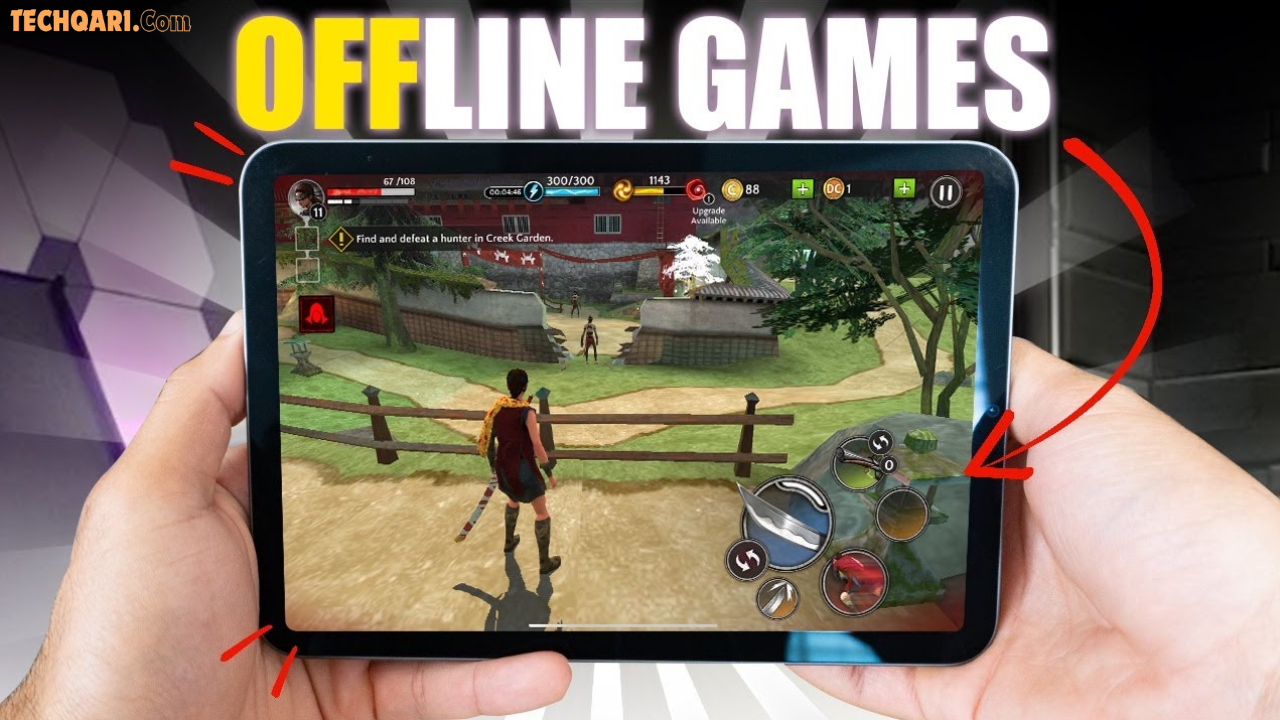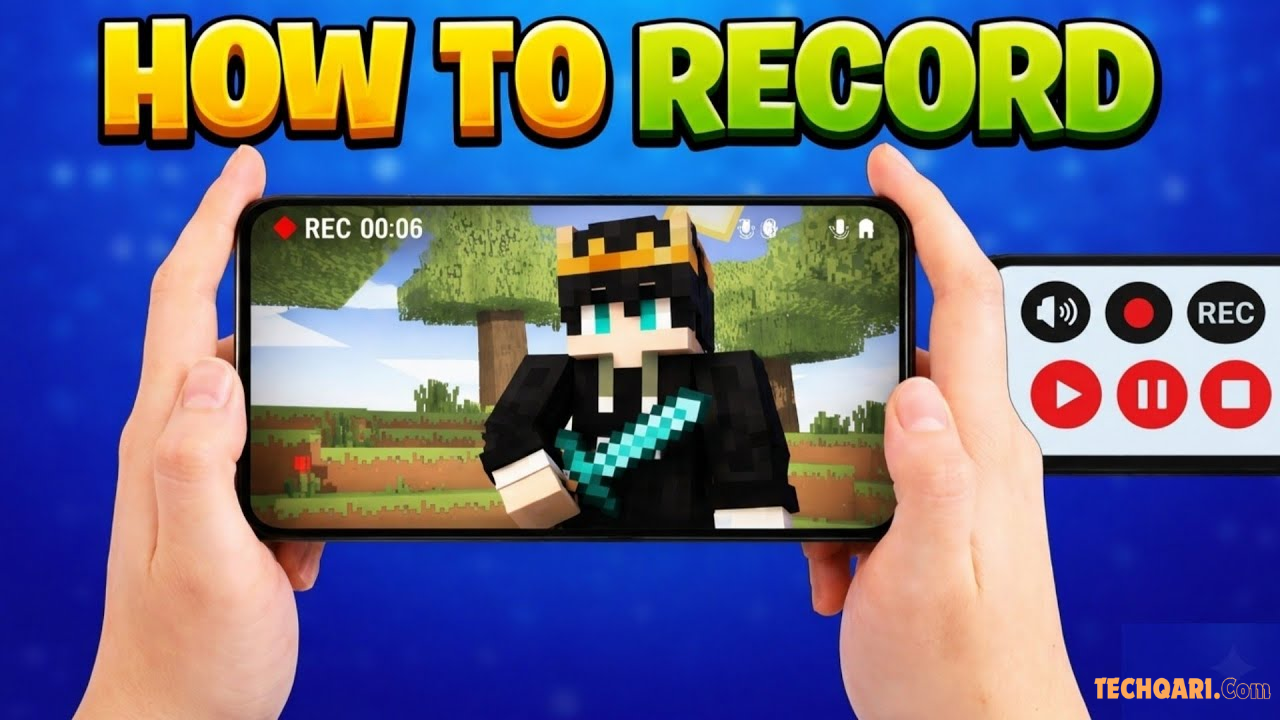

You finally landed that clutch win in PUBG Mobile. Your squad pulled off an insane combo in Mobile Legends. And your recording? Choppy, laggy, and unwatchable. Sound familiar?
Recording gameplay on Android without lag is one of those things that sounds simple — but can get really frustrating, really fast. The good news? You don’t need a flagship phone or expensive software. With the right free tools and a few smart settings, even a mid-range Android device can produce smooth, professional-quality recordings.
This guide covers everything: the best free apps, built-in recorder tricks, phone optimization tips, and the exact settings you need. Let’s get into it.
What Does “Lag-Free Gameplay Recording” Actually Mean?
Before we jump into tools, let’s quickly understand what causes lag in the first place.
When you record gameplay, your phone is doing two heavy jobs at the same time — running the game AND encoding a video. Both tasks demand CPU, GPU, and RAM. If your phone doesn’t have enough resources to handle both smoothly, you get:
- Dropped frames — the video skips or stutters
- FPS drops — your game itself slows down during recording
- Audio sync issues — sound and video get out of sync
- Overheating — the phone throttles performance to cool down
Lag-free recording means your phone can handle both tasks simultaneously without either the game or the video quality suffering.
Modern Android phones (Android 10 and above) support hardware encoding (H.264/H.265), which offloads video encoding to a dedicated chip — dramatically reducing CPU load. This is the secret weapon behind smooth recordings on even mid-range devices.
Option 1: Use Your Phone’s Built-In Screen Recorder (Best Starting Point)
This is the most overlooked tip. Most Android users rush to download third-party apps when the best tool is already on their phone.
Many modern Android devices come with native screen recording features — especially those running Android 11 and above, or using manufacturer skins like Samsung One UI, Xiaomi MIUI, or OnePlus OxygenOS. These built-in recorders are optimized for the hardware, which means they cause less lag than most third-party apps.
How to Access Your Built-In Screen Recorder
- Swipe down from the top of your screen to open the Quick Settings panel
- Look for a Screen Recorder tile (it looks like a video camera with a dot)
- If it’s not visible, tap the pencil/edit icon to add it from the available tiles
- Tap it, choose your audio source (game audio, mic, or both), and hit Start
- Stop recording from the notification bar or the floating button
This feature is available on Android 11 and newer, and also on devices like Samsung, OnePlus, and LG running Android 9 and above.
Why this works well: Built-in recorders use your phone’s native encoder, don’t run extra background processes, and save directly to your Videos folder — no watermark, no ads.
Best for: Casual recordings, quick clips, users who don’t need advanced features.
Option 2: AZ Screen Recorder – Best Free App Overall
If your built-in recorder lacks features or doesn’t exist on your device, AZ Screen Recorder is the go-to free choice for most Android gamers.
AZ Screen Recorder is a free app that lets you record high-quality gameplay without overlaying a watermark. It supports HD and Full HD video and is the only screencast app on Android that can be paused and resumed mid-recording.
Key Features (Free Version)
- Record at up to 1080p and 60 FPS
- No watermark on recordings
- Pause and resume recording (huge plus for long sessions)
- Front camera overlay (face cam for reaction videos)
- Built-in video trimmer
- Supports internal audio (Android 10+)
- No root required
How to Use AZ Screen Recorder for Lag-Free Gaming
- Download AZ Screen Recorder from the Google Play Store (free)
- Open the app and tap the gear icon (Settings)
- Set Resolution to 720p (not 1080p) for mid-range phones — this reduces encoding load significantly
- Set Frame Rate to 30 FPS (60 FPS doubles the processing demand)
- Enable Hardware Encoding if your device supports it
- Lower the Bitrate to 4–6 Mbps for smoother performance
- Close all background apps, then start your game
- Tap the AZ floating button and hit Record
Pro Tip: 720p at 30 FPS with hardware encoding often looks better than 1080p at 60 FPS with software encoding — because the lower-setting version has zero frame drops, while the high-setting version stutters.
Option 3: Mobizen Screen Recorder – Great for YouTube Content
Mobizen is one of the most popular screen recorders with four-star reviews on the Play Store. It supports full HD recording at 1080p and 60 FPS — and all core features are available for free.
What makes Mobizen stand out for content creators is its clean video output and direct YouTube sharing option. You can also add a face cam overlay, which is perfect if you’re building a gaming channel.
Mobizen vs AZ Screen Recorder
| Feature | AZ Screen Recorder | Mobizen |
|---|---|---|
| Max Resolution | 1080p | 1080p |
| Max FPS | 60 | 60 |
| Watermark (Free) | None | Small watermark (removable) |
| Pause & Resume | Yes | Yes |
| Face Cam Overlay | Yes | Yes |
| Built-in Editor | Basic trim | Yes |
| Internal Audio | Yes (Android 10+) | Yes (Android 10+) |
| Ads | Minimal | Moderate |
| Root Required | No | No |
Best for: Gamers who want to upload directly to YouTube with minimal editing.
Option 4: XRecorder by InShot – Best for Beginners
If you’re new to gameplay recording and want something simple that just works, XRecorder is an excellent choice.
XRecorder enables the creation of smooth, high-definition videos from Android screens with a single tap, and supports internal audio recording. It also features a built-in editor for trimming and merging clips, and supports full HD recording up to 1080p.
The interface is extremely clean — there’s no steep learning curve. Just open, tap record, and you’re done. The floating control button is small and unobtrusive, so it won’t get in the way of your gameplay.
Best for: Beginners, casual gamers, users who want simplicity over features.
Option 5: Google Play Games App – Free & Underrated
Many Android gamers completely overlook this one. The Google Play Games app has a built-in gameplay recording feature that’s completely free and surprisingly capable.
How to Record with Google Play Games
- Download Google Play Games from the Play Store (free)
- Open the app and find your game in the library
- Tap on the game’s detail page and select “Record Gameplay”
- Choose your video quality and tap Next → Launch
- Use the floating arrow to start and stop recording
Using Google Play Games, you can record gameplay on Android 5.0 and above — making it compatible with a wide range of older devices too.
This method is great because it’s optimized by Google specifically for gameplay capture, and since it’s a system-level app, it tends to cause less lag than third-party alternatives.
Top Free Tools Comparison Table
| App | Free Version | No Watermark | Internal Audio | Hardware Encoding | Best For |
|---|---|---|---|---|---|
| Built-in Recorder | ✅ | ✅ | ✅ | ✅ | Quick clips |
| AZ Screen Recorder | ✅ | ✅ | ✅ (Android 10+) | ✅ | Best overall |
| Mobizen | ✅ | ⚠️ Small | ✅ (Android 10+) | ✅ | YouTube content |
| XRecorder | ✅ | ✅ | ✅ | ✅ | Beginners |
| Google Play Games | ✅ | ✅ | ✅ | ✅ | Casual gamers |
| ADV Screen Recorder | ✅ | ✅ | ✅ | ✅ | Advanced users |
Critical Phone Settings to Eliminate Lag Before Recording
Even the best app will lag if your phone isn’t set up correctly. These steps make a bigger difference than most people realize.
1. Restart Your Phone Before Recording
This is the single most effective and most ignored step. A fresh restart clears RAM, kills background processes, and gives your phone a clean slate. Do this every time before a recording session.
2. Enable Developer Options and Disable Animations
Animations use GPU resources. Turning them off frees up processing power for your game and recorder.
- Go to Settings → About Phone
- Tap Build Number 7 times until Developer Options unlocks
- Go to Settings → Developer Options
- Set Window animation scale, Transition animation scale, and Animator duration scale all to Off
3. Lower In-Game Graphics Settings
Lowering in-game graphics settings is one of the most effective ways to free up resources for recording. Even dropping from Ultra to High settings can significantly reduce CPU/GPU load. You’re recording a video — viewers won’t notice the difference between Ultra and High, but they will notice if the video is smooth versus choppy.
4. Use Airplane Mode (or Do Not Disturb)
Incoming notifications, calls, and background sync tasks all compete for resources. Turn on Do Not Disturb or even Airplane Mode (if you’re playing offline games) during recording sessions.
5. Keep Your Phone Cool
Heat is the enemy of smooth performance. When your phone overheats, it throttles CPU and GPU speed to protect itself — causing lag spikes. Tips to prevent overheating:
- Don’t charge while recording if possible (charging generates heat)
- Remove your phone case during long recording sessions
- Record in a cool environment, not in direct sunlight
- If using a power bank (for longer sessions), use a short cable and let air circulate
6. Free Up Storage Space
Running out of disk space mid-recording can corrupt files. Always leave at least 10GB free before you start. Low storage also slows down write speeds, which can cause stuttering in recordings.
Best Recording Settings for Different Android Phones
Not all phones are equal. Here’s a quick guide:
Low-End / Budget Phones (2–3 GB RAM)
- Resolution: 720p
- FPS: 30
- Bitrate: 3–4 Mbps
- Encoding: Hardware (if available)
- App: Built-in recorder or Google Play Games
Mid-Range Phones (4–6 GB RAM)
- Resolution: 720p or 1080p
- FPS: 30
- Bitrate: 4–6 Mbps
- Encoding: Hardware
- App: AZ Screen Recorder or XRecorder
Flagship Phones (8+ GB RAM)
- Resolution: 1080p
- FPS: 60
- Bitrate: 8–12 Mbps
- Encoding: Hardware
- App: Any of the above, or Mobizen for YouTube
Using hardware encoding on a modern flagship with AZ Screen Recorder at 1080p/30fps and 10 Mbps results in near-zero perceptible performance hit for most games.
Pros and Cons: Third-Party Apps vs Built-In Recorder
Built-In Screen Recorder
Pros:
- Zero extra resource usage
- No ads, no watermark
- Always optimized for your specific hardware
- Simple and fast to access
Cons:
- Limited settings (no bitrate/FPS control on most)
- No face cam overlay
- No built-in editor
- Not available on all older devices
Third-Party Apps (AZ, Mobizen, XRecorder, etc.)
Pros:
- Full control over quality settings
- Face cam overlay for reaction videos
- Built-in trimmer/editor
- Pause and resume
- Direct social sharing
Cons:
- Uses extra RAM and CPU
- Some show ads in the free version
- Minor additional battery drain
- Some may have watermarks in free tier
Tips for Specific Popular Games
PUBG Mobile / BGMI
Lower graphic settings to Smooth + Extreme for recording. This ensures the game maintains 60 FPS even while the recorder is running. Record at 720p 30 FPS.
Mobile Legends / Free Fire
These games are lighter. You can record at 1080p 30 FPS on most mid-range phones. Use AZ Screen Recorder with hardware encoding enabled.
Genshin Impact / Call of Duty Mobile
These are the most resource-heavy games on Android. Drop to 720p 30 FPS recording, reduce in-game graphics to Medium, and restart your phone before each session.
Frequently Asked Questions
Q1: Why does my phone get hot and lag when I record gameplay?
When you record while gaming, your CPU and GPU are handling two heavy tasks simultaneously — running the game and encoding a video. This generates extra heat, which causes your phone to slow down (thermal throttling) to protect itself. The fix: lower your in-game graphics, use hardware encoding in your recorder, and keep your phone cool by removing the case and recording in a cooler environment.
Q2: Can I record internal game audio for free on Android?
Yes, but only on Android 10 and above. Google introduced the AudioPlaybackCapture API in Android 10, which allows apps to capture internal audio without root access. Apps like AZ Screen Recorder and XRecorder support this. On Android 9 or below, you can only record through the microphone (external audio).
Q3: Which free app records gameplay without a watermark?
AZ Screen Recorder, XRecorder, Google Play Games, and your phone’s built-in screen recorder all record without any watermark in their free versions. Mobizen adds a small watermark in the free version, but it can be removed by watching a short ad.
Q4: Does recording gameplay affect FPS in the game?
Yes, but only if you’re not using hardware encoding, or if your phone doesn’t have enough RAM. To minimize FPS impact: enable hardware encoding in your recorder settings, lower the recording resolution to 720p, and close all background apps before recording.
Q5: What is the best screen recorder for Android for YouTube?
For YouTube specifically, Mobizen and AZ Screen Recorder are the best free options. Both support 1080p recording, face cam overlay, and direct export in MP4 format — the standard format YouTube processes best. Mobizen also has a direct YouTube sharing feature built in.
Conclusion
Recording smooth, lag-free gameplay on Android doesn’t require a powerful phone or paid software. Start with your phone’s built-in recorder — it’s underrated and works well for most devices. If you need more control, AZ Screen Recorder is the best free all-rounder. For beginners, XRecorder is the simplest option. And for YouTube creators, Mobizen delivers the cleanest output.
But remember — the app is only half the equation. Restart your phone before recording, lower your in-game graphics, enable hardware encoding, and keep your phone cool. These optimizations will make a bigger difference than any app switch.
Pick one tool, tweak your settings once, and your recordings will go from choppy and unwatchable to smooth and share-worthy.
Ready to start recording? Get AZ Screen Recorder from the Play Store and try the settings in this guide — you’ll notice the difference immediately.